> ## Documentation Index
> Fetch the complete documentation index at: https://docs.dcdeploy.com/llms.txt
> Use this file to discover all available pages before exploring further.
# Deploy from Docker registry
> Deploy your services using Docker images either from DockerHub or from a private registry
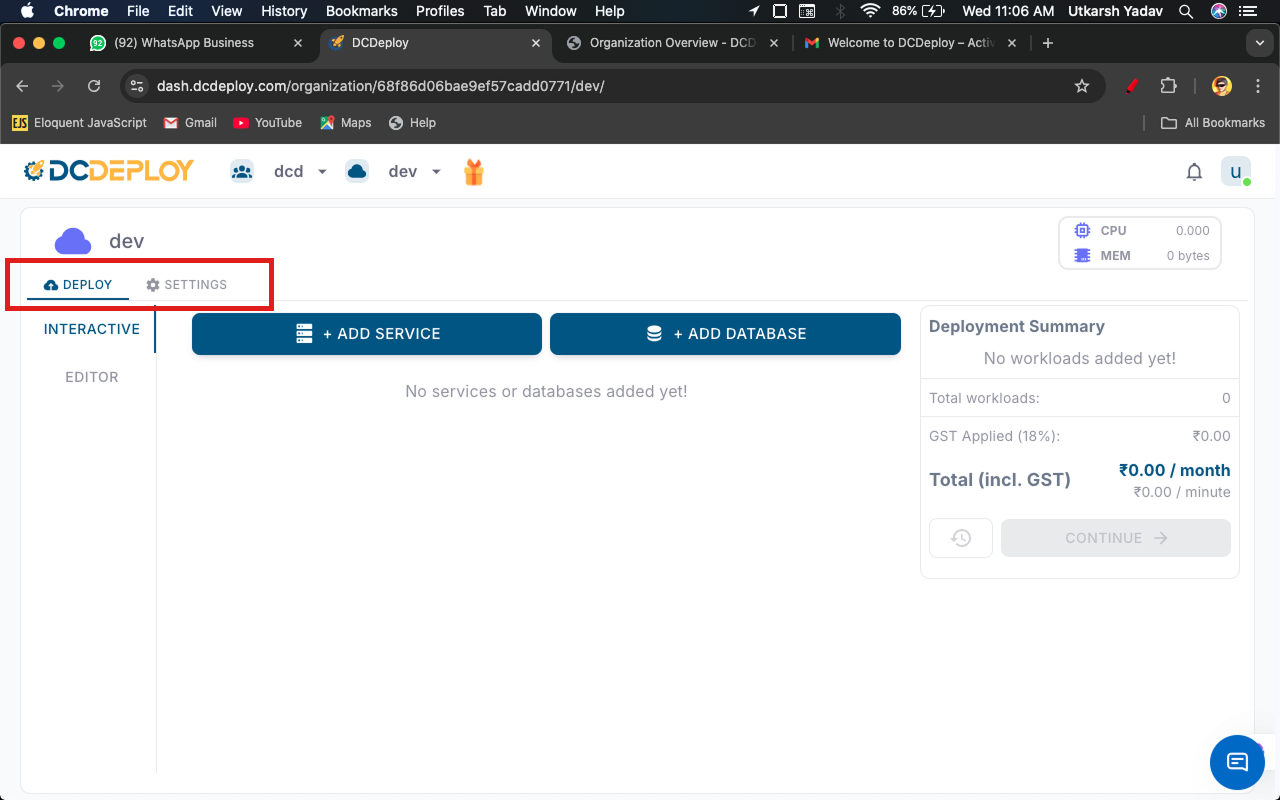
Navigate to the **Deploy** tab of the environment in your DCDeploy dashboard where you want to deploy your service.
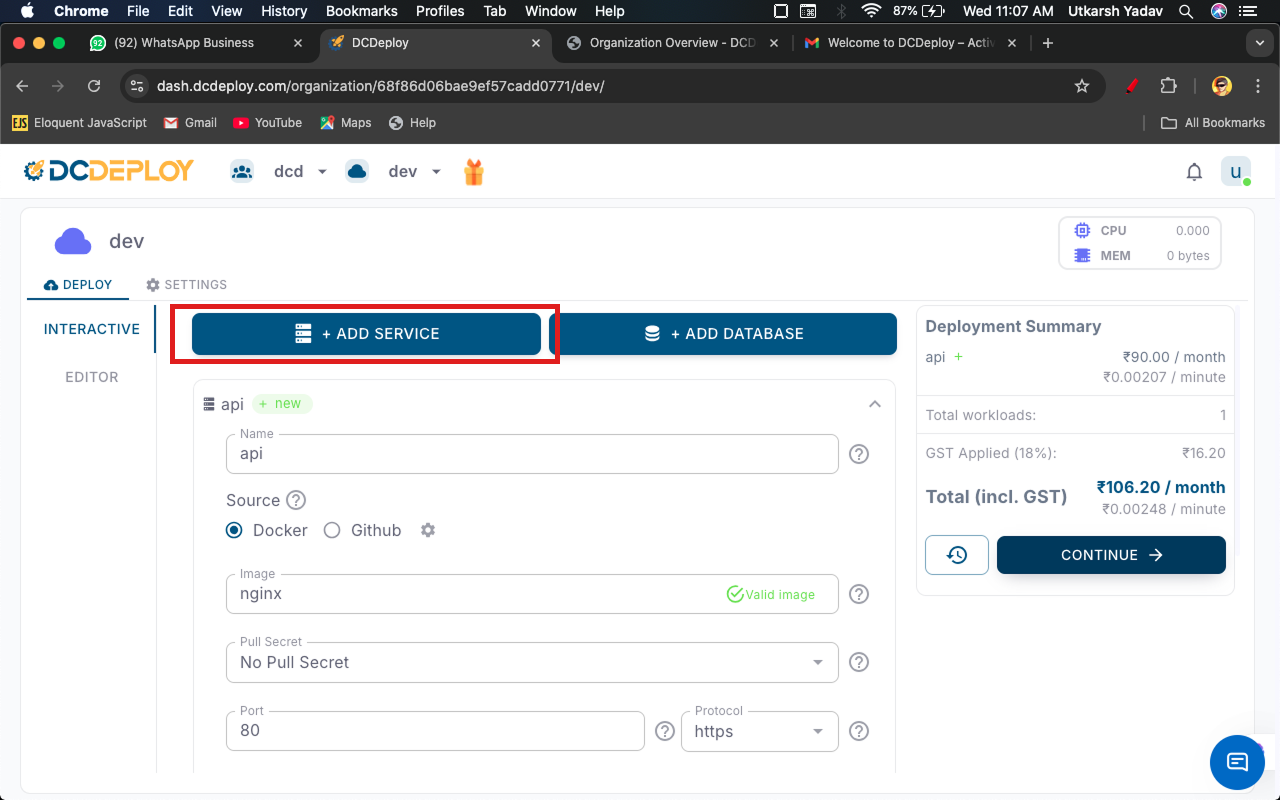
 Click on **Add Service**. A new form will appear where you can provide details of your service.
1. Begin by adding a new service.
2. **Service Name**: A unique name is auto-generated by default. You can change it if needed.
Click on **Add Service**. A new form will appear where you can provide details of your service.
1. Begin by adding a new service.
2. **Service Name**: A unique name is auto-generated by default. You can change it if needed.
 6. Next, select the source type for your service (default is **Docker**).
7. Afterwards, provide the image details.
8. Valid examples: `nginx:latest`, `nginx`, `docker.io/nginx:latest`, `docker.io/nginx`.
9. Continue by adding the image configuration.
10. By default pull-secret set to no pull-secret if the service is private configure credentials , the service will be deployed in private network. Otherwise, it will be deployed in public network.
Configure how your service should run:
* **Port**: Enter the port number your service listens on. Ensure your app binds to `0.0.0.0` on this port.
* **Protocol**: HTTPS is the default protocol.
* **Region**: Select the DCDeploy region(s) where you want your service deployed.
* **Machine Type**: Choose from available DCDeploy machine types (CPU, RAM, and Disk). [See details here](https://dcdeploy.com/pricing/).
* **CPU/Memory Usage Limits**: Configure resource limits according to your service requirements.
* **Environment Variables**: Provide environment variables by directly pasting your `.env` file or add them manually.
* **Scaling Options**:
* Define minimum and maximum instances.
* Enable **Auto Scaling** to automatically scale based on traffic or CPU/memory thresholds.
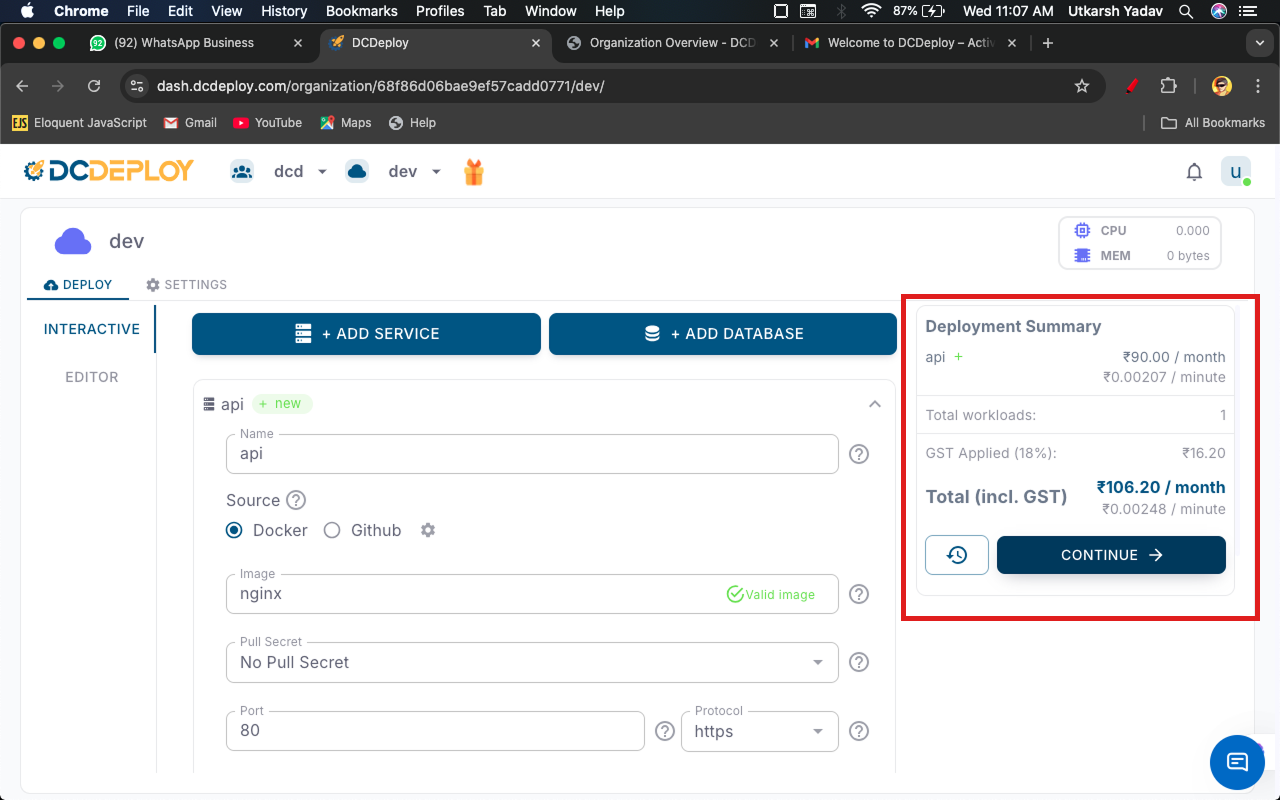
Click the **Continue** button.
6. Next, select the source type for your service (default is **Docker**).
7. Afterwards, provide the image details.
8. Valid examples: `nginx:latest`, `nginx`, `docker.io/nginx:latest`, `docker.io/nginx`.
9. Continue by adding the image configuration.
10. By default pull-secret set to no pull-secret if the service is private configure credentials , the service will be deployed in private network. Otherwise, it will be deployed in public network.
Configure how your service should run:
* **Port**: Enter the port number your service listens on. Ensure your app binds to `0.0.0.0` on this port.
* **Protocol**: HTTPS is the default protocol.
* **Region**: Select the DCDeploy region(s) where you want your service deployed.
* **Machine Type**: Choose from available DCDeploy machine types (CPU, RAM, and Disk). [See details here](https://dcdeploy.com/pricing/).
* **CPU/Memory Usage Limits**: Configure resource limits according to your service requirements.
* **Environment Variables**: Provide environment variables by directly pasting your `.env` file or add them manually.
* **Scaling Options**:
* Define minimum and maximum instances.
* Enable **Auto Scaling** to automatically scale based on traffic or CPU/memory thresholds.
Click the **Continue** button.
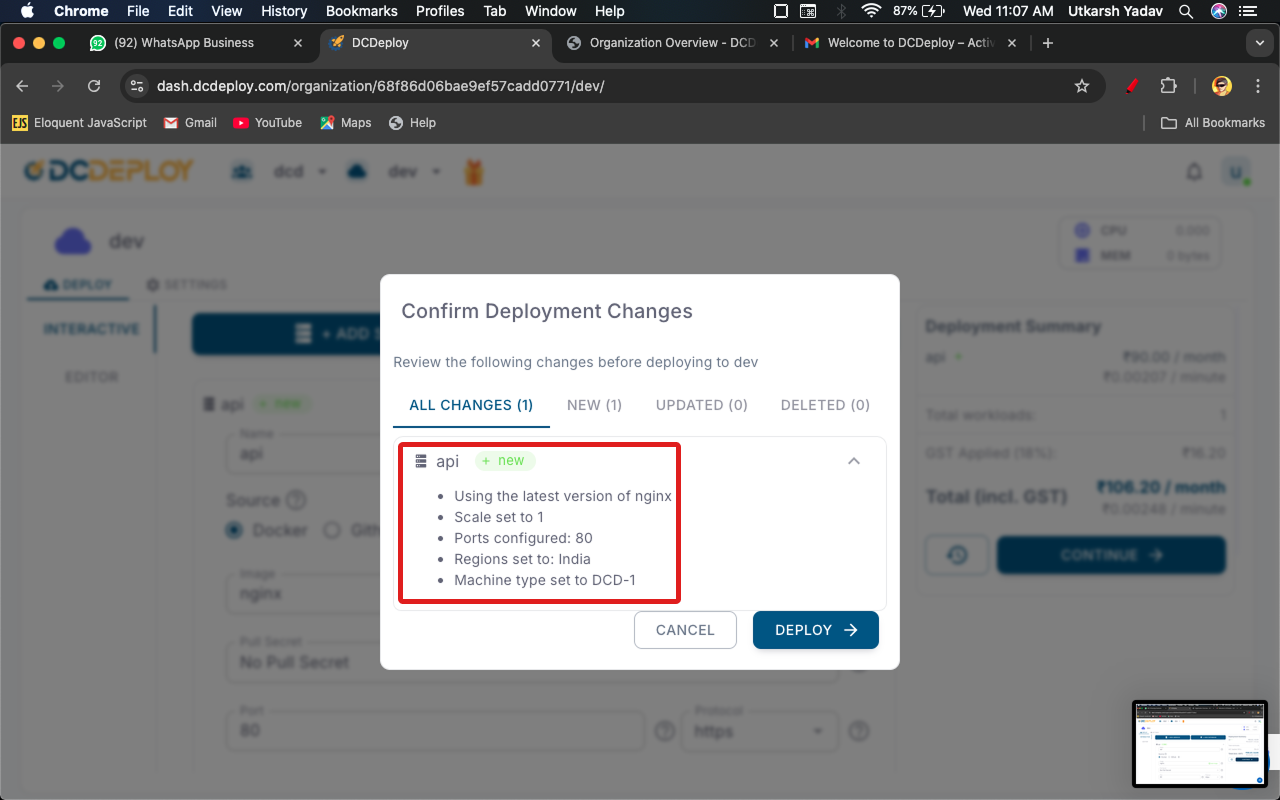
 * You’ll be asked for confirmation before deployment.
* If multiple services are added, removed, or updated, confirmation will cover all changes.
* You’ll be asked for confirmation before deployment.
* If multiple services are added, removed, or updated, confirmation will cover all changes.