> ## Documentation Index
> Fetch the complete documentation index at: https://docs.dcdeploy.com/llms.txt
> Use this file to discover all available pages before exploring further.
# Organization Overview
> Understand the DCDeploy Organization Overview page, including environments, usage, billing, and activity insights.
The **Organization Overview** page gives you a central view of your organization’s resources, usage, and billing in DCDeploy.\
It helps you monitor environments, manage balance, and track activities across workloads in real time.
***
## Sections in Organization Overview
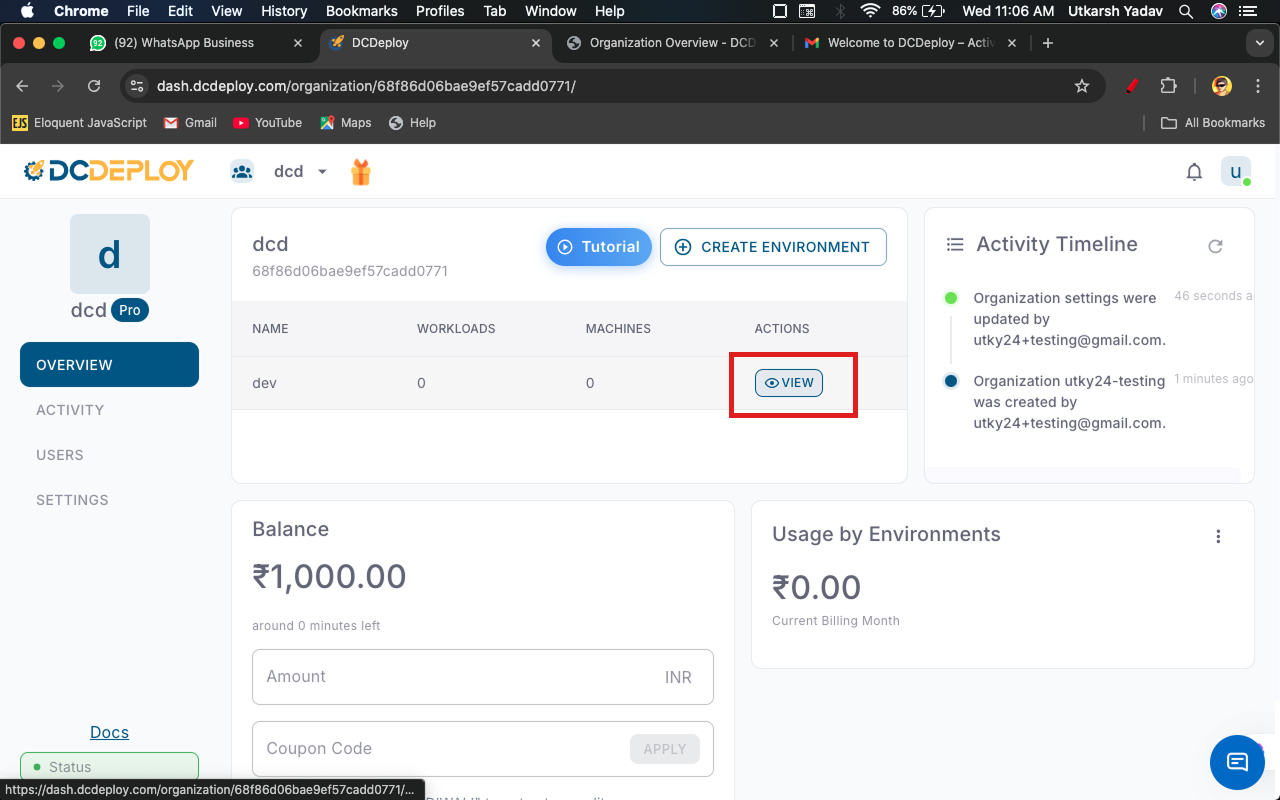
### 1. **Environments**
* Lists all active environments under the organization (e.g., `dev`, `QA`, `prod`).
* For each environment you can:
* View associated workloads and machines.
* Manage deployments.
* Access environment-specific settings.
👉 Use the **View** button to drill into details for each environment.
 ***
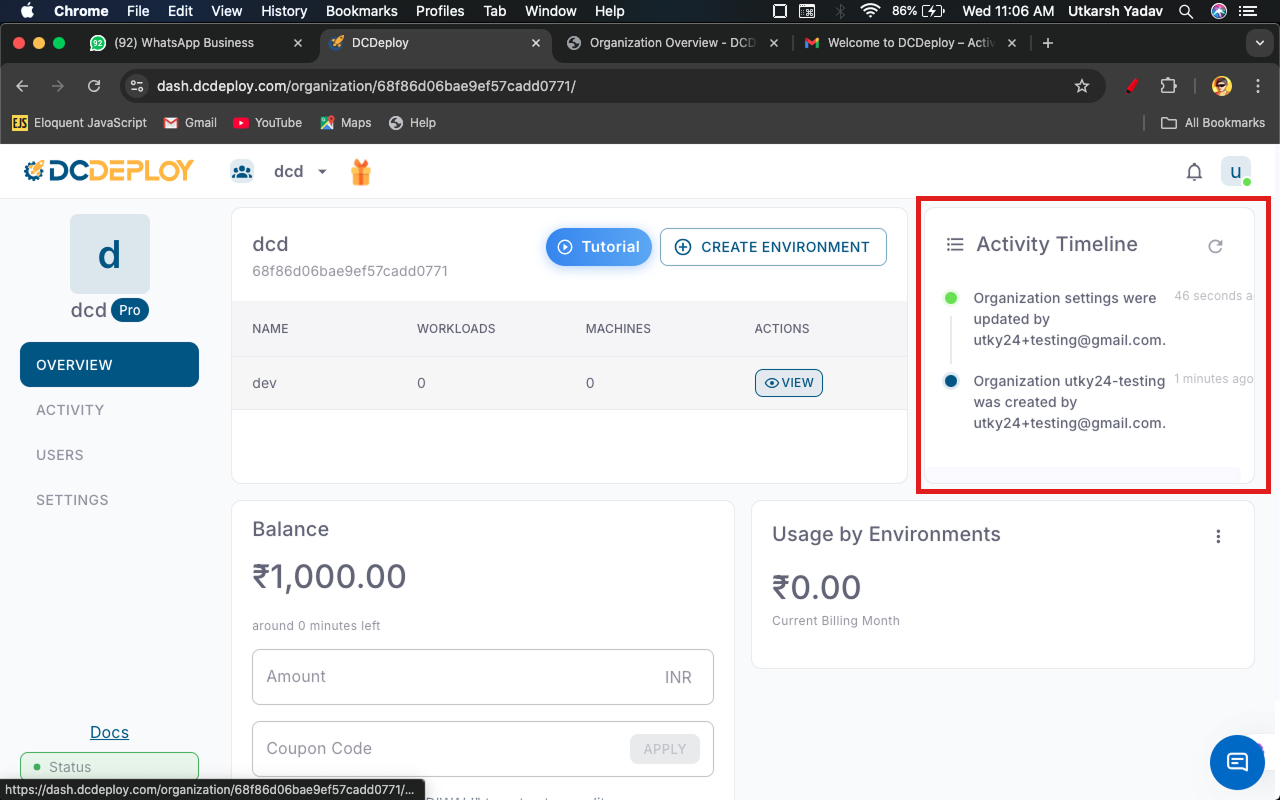
### 2. **Activity Timeline**
* Displays recent events and deployments across environments.
* Events include:
* Build start & completion.
* Deployment progress.
* Failed builds (marked in red).
* Helps track history and troubleshoot issues in real time.
***
### 2. **Activity Timeline**
* Displays recent events and deployments across environments.
* Events include:
* Build start & completion.
* Deployment progress.
* Failed builds (marked in red).
* Helps track history and troubleshoot issues in real time.
 ***
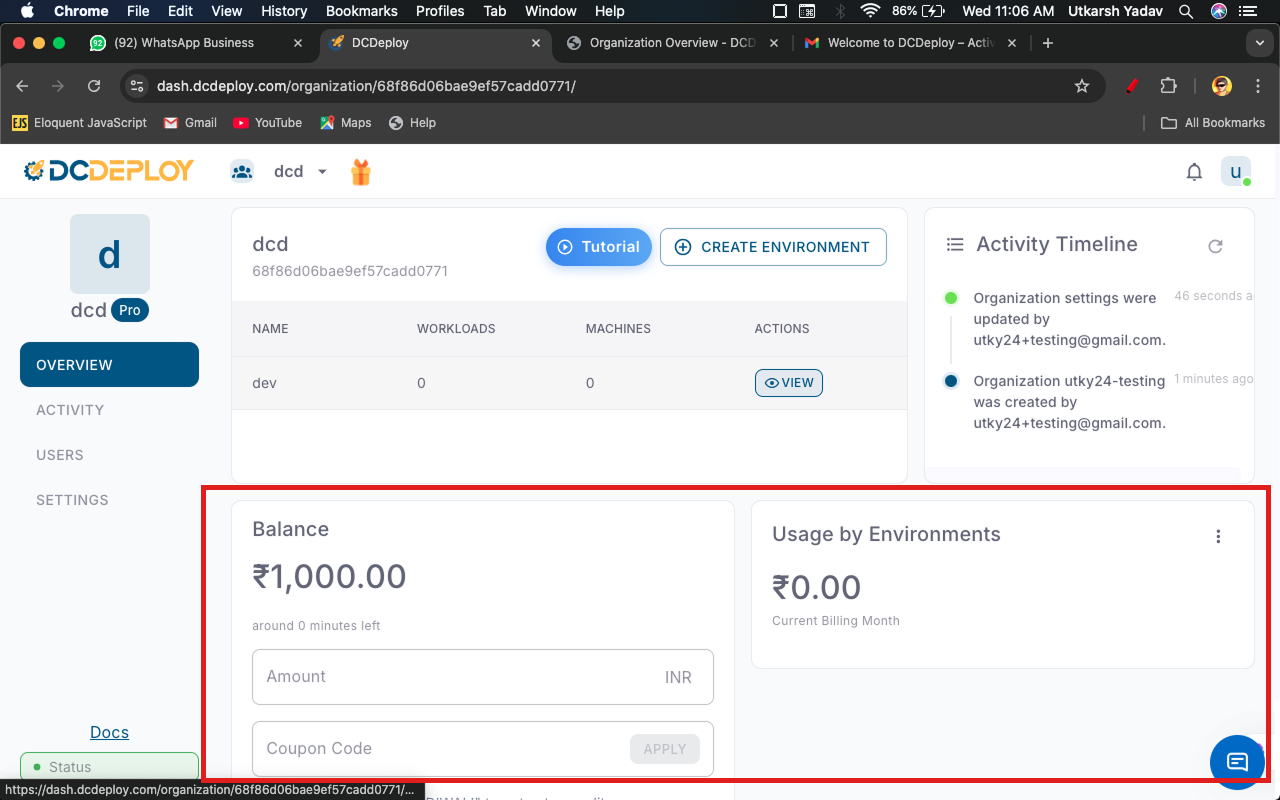
### 3. **Balance**
* Shows your **current account balance** in INR.
* Negative values indicate outstanding dues.
* You can **add funds** directly from this panel.
* Also displays estimated **minutes left** based on current balance and usage.
***
### 3. **Balance**
* Shows your **current account balance** in INR.
* Negative values indicate outstanding dues.
* You can **add funds** directly from this panel.
* Also displays estimated **minutes left** based on current balance and usage.
 ***
### 4. **Usage by Environments**
* Breaks down **current month’s billing** by environment.
* Helps identify which environment or repo consumes the most resources.
* Example:
* `dev` – ₹1,845.59
* `prod` – ₹9,381.05
* `staging` – ₹141.97
***
## Key Use Cases
* Quickly monitor environment health and usage.
* Identify high-cost environments and optimize workloads.
* Track build and deployment history for debugging.
* Manage balance to avoid service interruptions.
***
## Best Practices
* Regularly check the **Activity Timeline** to spot failed builds.
* Use **Usage by Environments** to optimize cost allocation.
* Ensure your **balance is positive** to prevent deployment failures.
* Organize workloads into separate environments for clarity (e.g., dev, staging, prod).
***
***
### 4. **Usage by Environments**
* Breaks down **current month’s billing** by environment.
* Helps identify which environment or repo consumes the most resources.
* Example:
* `dev` – ₹1,845.59
* `prod` – ₹9,381.05
* `staging` – ₹141.97
***
## Key Use Cases
* Quickly monitor environment health and usage.
* Identify high-cost environments and optimize workloads.
* Track build and deployment history for debugging.
* Manage balance to avoid service interruptions.
***
## Best Practices
* Regularly check the **Activity Timeline** to spot failed builds.
* Use **Usage by Environments** to optimize cost allocation.
* Ensure your **balance is positive** to prevent deployment failures.
* Organize workloads into separate environments for clarity (e.g., dev, staging, prod).
***